Module 12 - Making System Architecture Changes
Introduction
This document outlines the procedure for making architecture changes to an installed OptaSense 6 system. It is possible to stack tasks and have it work through them in the background. This means that the scheduler can be closed whilst it works its way through them, in most instances enabling the main software to be run.
Pre-Requisites
Please ensure the following are complete and available before work is started:
- The system is up and running, and OS6 is installed on the control unit (CU).
- The user is logged in with 'Super User' privileges.
- All instances of the OS6 software are stopped on any other CU.
Before performing any changes to the System, it is highly recommended that the System configuration is exported
Launching the Install Scheduler
- Launch the Install Scheduler from the Windows start menu.
- A notification appears informing the user that the application can be used to make architectural changes to the system. Click Yes to proceed.
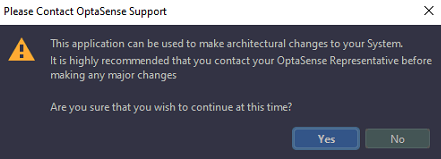
- Login with a user account who has ‘Super User’ privileges
Pre-Install Checker
The purpose of the pre-install checker is to see if the current system meets the minimum requirements to run OS6 and is in a suitable state to make any changes.
- Click on the + symbol and select preinstall checker.
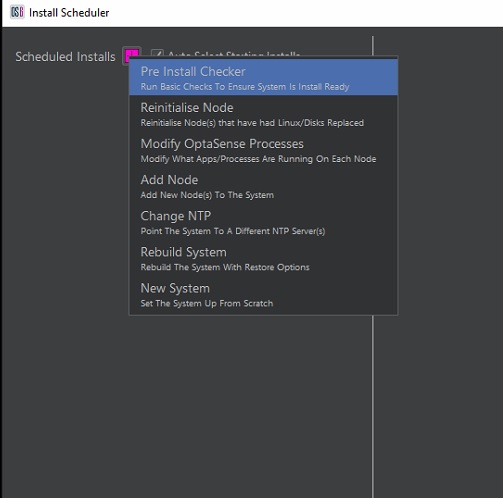
- This opens a task window. If the checks pass, the task display will turn green, and red if it has failed.
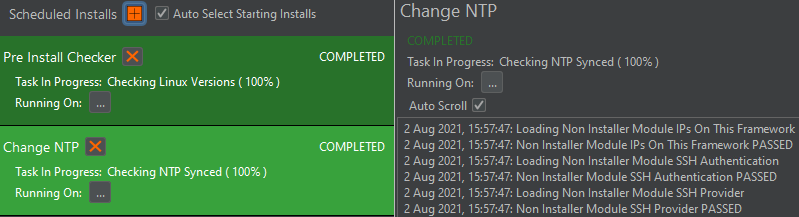
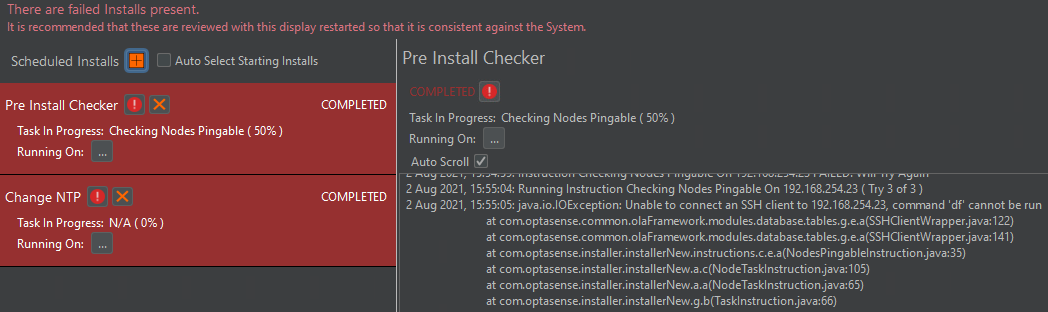
Should the task fail, an indication as to why it failed may be found in the process logs (right of failed task).
The pre-install checker will automatically run prior to any of the other system architecture changes that can be tasked.
Reinitialise PU(s)
The reinitialise PU feature enables the Operator to reintroduce a PU into the system after having its operating system hard disk replaced. Note, Linux would need to be installed on the replacement disk, using the same configuration details that the previous disk used. Pay attention to details like, the Linux version, ethernet port addressing, or whether the node was using a Mellanox network card.
- Click on the + symbol and select Reinitialise PU(s).
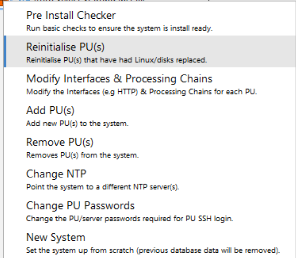
- Tick the required PU(s) required for reinitialise and ‘Apply Changes’.
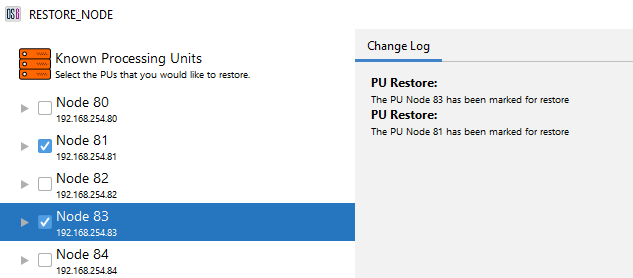
- Before the reinitialise starts, you must confirm that system has the correct password for the PUs which is about to be reinitialized. Normally the PU will have the default password (as it is assumed that PU has had a fresh Linux Install). Once confirmed, the task will run on the main window to reinitialise the PU(s).
If the installer fails, seek OptaSense Support before taking any further action
Modify Interfaces & Processing Chains
To modify the processes running on each PU, select the ‘Modify Interfaces & Processing Chains’ menu option. With this option, Operators can add Interfaces like HTTP or modify the IU Processing Blocks running on each PU.
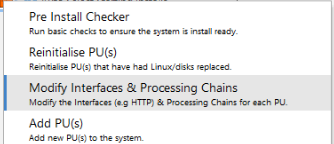
- Click on the + symbol and select Modify OptaSense Process.
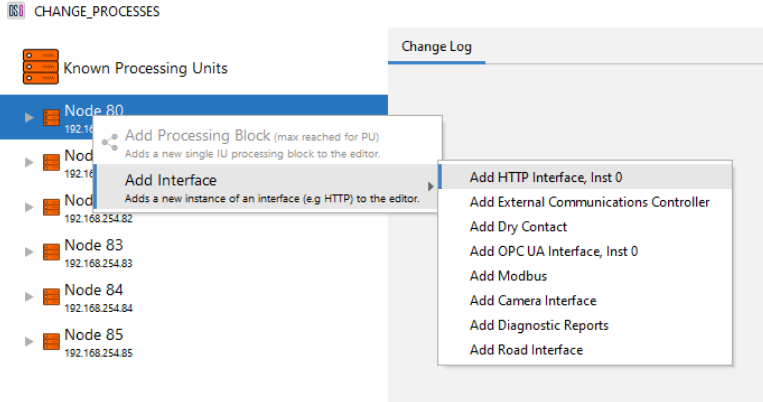
- Interfaces can be allocated by using the right-click menus on each PU.
- Interfaces can be removed from PUs by right-clicking on the interface
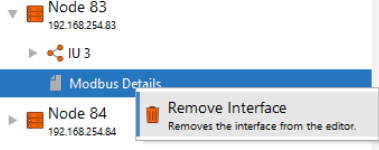
IU Processing Blocks can be added and removed in a similar fashion to Interfaces but changing processing blocks on a live System would not be considered normal operating behaviour.
Once the required modifications have been applied to the editor, the Operator needs to ‘Apply Changes’
Note - Once finished, all Operator interfaces need to be restarted.
Adding PU(s) To the System
To increase the size of the system, Operators can make use of the ‘Add PU’ feature. Operators must ensure these new PUs are contactable by the rest of the system.
It is advised to export system alerts and backup the config in case issues arise that require a new system install.
- Click on the + symbol and select Add PU(s).
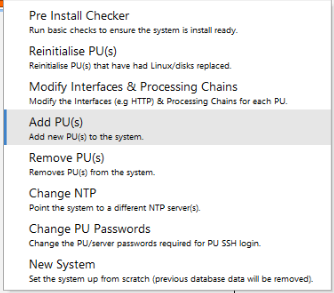
-
Select the ‘Add Processing Unit’ option by right clicking on the ‘Known Processing Units’ label.
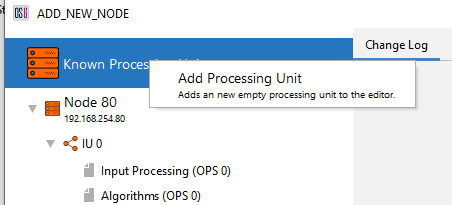
-
Enter the required PU name, its IP address and select if the PU is DPU spec. Once entered, ‘Add PU’.
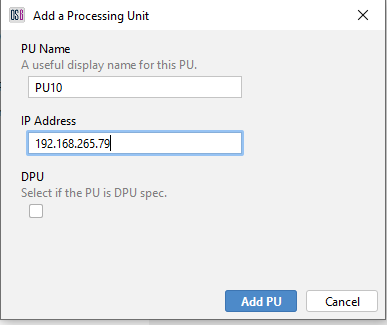
-
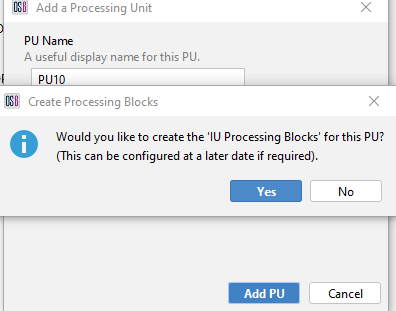
At this stage, the option to add IU Processing Blocks (Input Processing, Algorithms, Rolling Recorders etc) will appear. This is normal procedure, however this may not be required where the PU is not going to be connected to an IU and is acting as an additional Database Server.
-
The Operator will now need to create ‘IU Processing Blocks’ for the PU (if required).
-
An IU Processing Block consists of all the processing required for one IU.
-
If the PU is DPU spec, two blocks will be required (as there will be two IUs on that DPU).
-
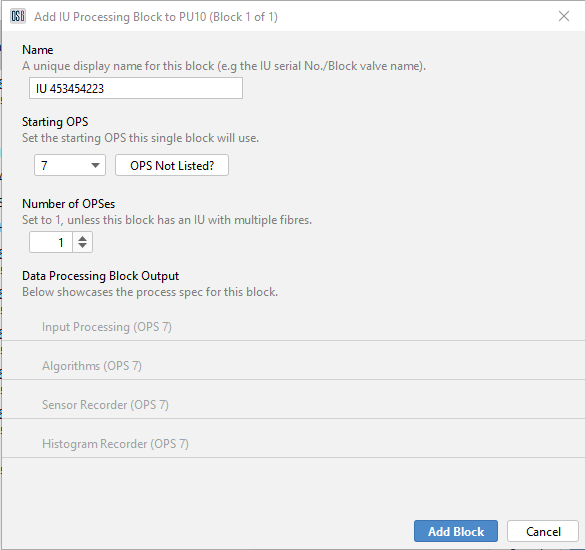
The processes that sit under a single block include Input Processing, Algorithms, and the Rolling Recorders.
-
If the IU has the capability of monitoring 2 or more fibres simultaneously (e.g. ATLAS IUs), then the number of OPSs should be set accordingly.
When creating a Processing Block, Operators need to provide a useful block name (IU Serial number, Block Valve station name etc) and the starting OPS.
-
-
Once the IU Processing Block details have been added, the Operator should select ‘Add Block’.

-
Operators at this point can add Interfaces to the new PU if required. See ‘Modifying Interfaces’.
-
Once the Operator has added the required PUs and their processing, the Operator can ‘Apply Changes’ in which the editor will ask to confirm the password for the new PU(s).

- Once confirmed, the Installer will add the new PU(s) to the system.
If the installer fails when adding a PU, seek support before taking any further action.
Removing PU(s) From the System
To reduce the size of the system, Operators can make use of the ‘Remove PU(s)’ option.
It is advised to export system alerts and backup the config in case issues arise that require a new system install.
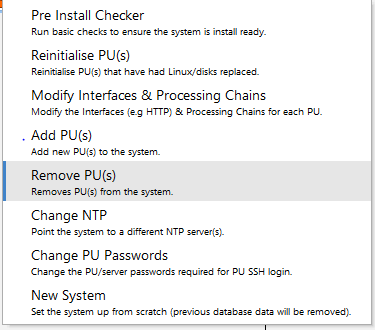
- Click on the + symbol and select Remove PU(s).
- Tick the required PU(s) required for removal and ‘Apply Changes’.
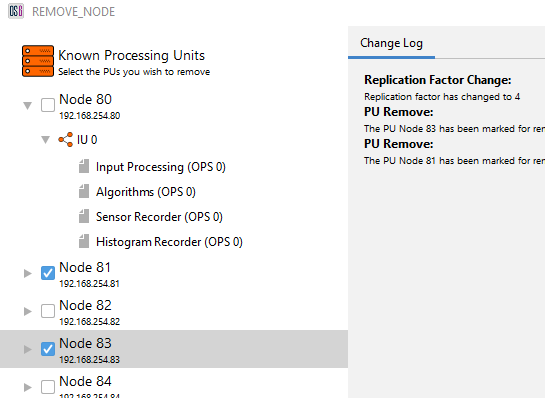
- Before the removal starts, you must confirm that system has the correct password for the PUs about to be removed. Once confirmed, the task will run on the main window to remove the PU(s).
If the installer fails, seek OptaSense Support before taking any further action.
Database Repair
Performs a configuration of the scheduled database repairs. There are no options to choose when running this process.
Change NTP Source
The NTP source can be changed so that the system looks to another device for the system time. The alternative source must be handing out time in UTC format as failure to do so will results some of the features (map / detector settings) being unavailable in the main software.
- Click on the + symbol and select Change NTP.

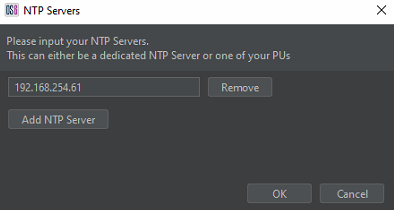
- A dialog will appear allowing the user to edit the current IP address or add an additional source. The purpose of the additional sources is to provide redundancy should the primary fail. Having added the required devices, Click ok.
Change System Wide PU Password
-
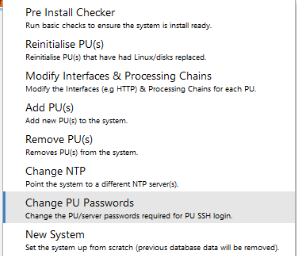
Click on the + symbol and select Change PU Passwords.
-
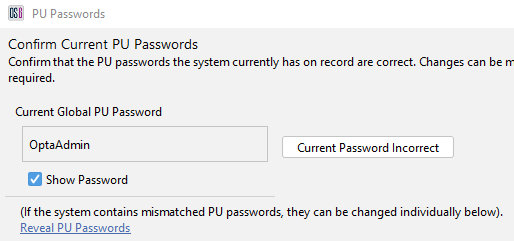
The Operator will be prompted to confirm that the current system wide PU password. If for any reason there are mismatched PU passwords, this display allows the current password to be inputted on a per PU basis. Click confirm to process to the next step.
-
The Operator is then asked to enter the desired system wide PU password. Once confirmed the Software will proceed to update the PU passwords for all PUs.
Update Operating System
The Update Operating System tool allows the Linux system running on the PUs to be upgraded without destroying the existing OS6 system.
-
After selecting this option, the Operator will be asked to point the system towards a mounted iso file containing the latest Linux installer.
-
Click Apply Changes to start the upgrade process.
Update CPU Pinning
OS6 systems can implement a CPU pinning process that assigns specific cores on the processor solely for the purpose of receiving sensor data from the IUs. The purpose of this is to ensure that no data is lost because cores are occupied by other processes.
CPU pinning is usually configured during the Linux installation procedure, but if an IU has been replaced with a different type then it may be necessary to update the CPU pinning.
-
Select Update CPU Pinning
-
Select the PU(s) that the CPU pinning is to be reconfigured on. Expand the PU menu by double clicking on it.
-
Identify the network interface that the CPU pinning is be be (re)configured on.
-
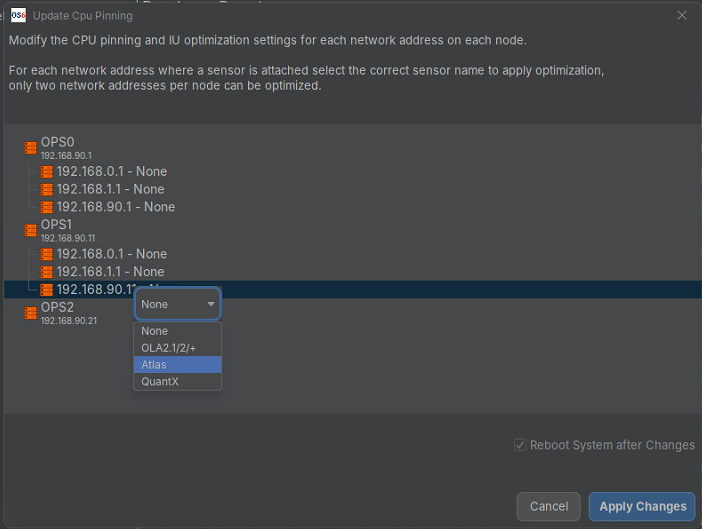
Right-click on the network interface to access a drop-down menu from which the appropriate IU type should be selected.
-
Apply the changes.
Enable/Disable Eaton UPS Agent
Some systems may be installed with an Eaton Uninterruptible Power Supply. These systems rely on a battery backup to ensure that the OS6 system continues to function in the event of a power loss. The batteries will run down and if power is not restored then the Eaton UPS can ensure a safe shutdown of the PU to prevent any data corruption from a sudden power loss.
In order to allow the Eaton UPS to perform a safe shutdown it is necessary to configure a network port for communication.
- Select Enable/Disable Eaton UPS Agent
- Check the boxes for each PU that should be able to communicate with the Eaton UPS.
- Apply changes.
New System
The new system feature allows the user to destroy the existing system and create a new system with a fresh install. This may be requierd if an existing system has been corrupted and cannot be repaired.
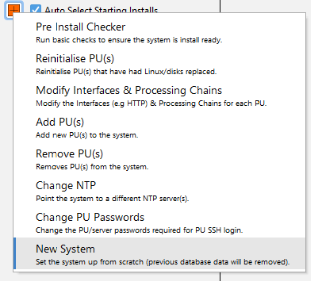
- Click on the + symbol and select new system.
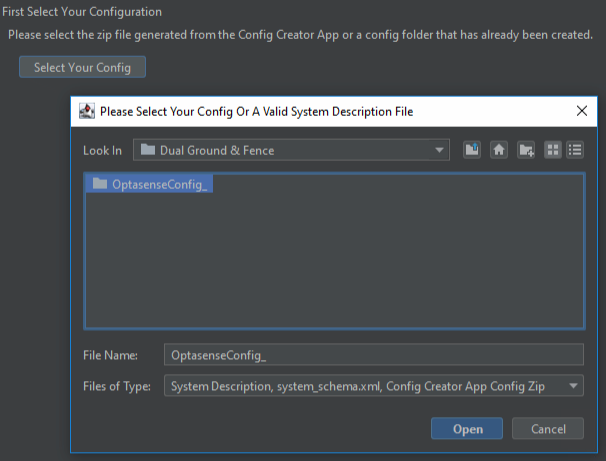
- Select the new system config (or the system description file). It is possible to use just the system description file and then import a full config or use the default config properties later on.
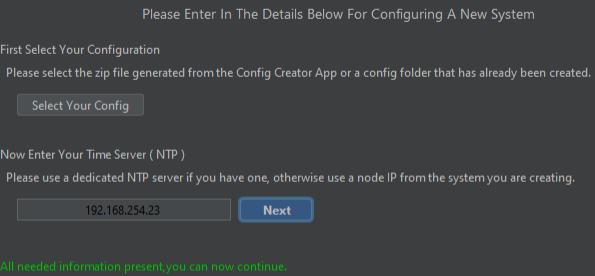
- Enter the NTP IP address of the time source the system is to use. It is essential that the NTP source can service the time in UTC as failure to do so will result in some of the OS6 features becoming unavailable. Click continue to proceed to the next steps.
-
Before the new system task starts, the Operator will be asked to confirm that the current system wide node password. If there are mismatched node passwords, this display allows the current password to be inputted on a per node basis. Click confirm to proceed to the next step.
-
The final step now asks for the desired system wide PU password. The operator can proceed without making any changes. Once confirmed, the new system task will run on the main display.
-
After the new system install is complete, the OS6 GUI can be opened.